Download
Beta IPSW

for iPhone

Download the latest beta firmware for iPhone, iPad, Mac, Apple Vision Pro, and Apple TV. Check the signing status of the beta firmware.

Latest Releases

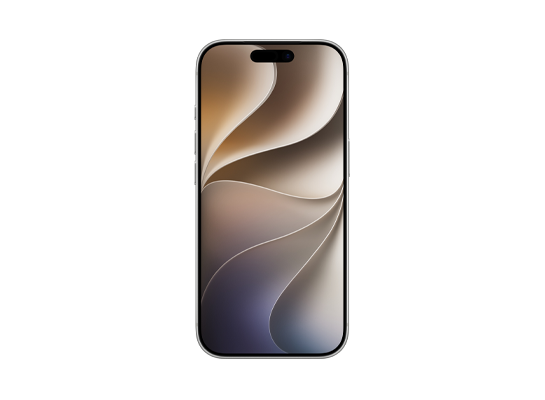
iPhone 17 Pro running iOS 27 iPhone 17 Pro running iOS 27

iPhone

iOS 27.2 beta 3
iPad Pro running iPadOS 27 iPad Pro running iPadOS 27

iPad

iPadOS 27.2 beta 3
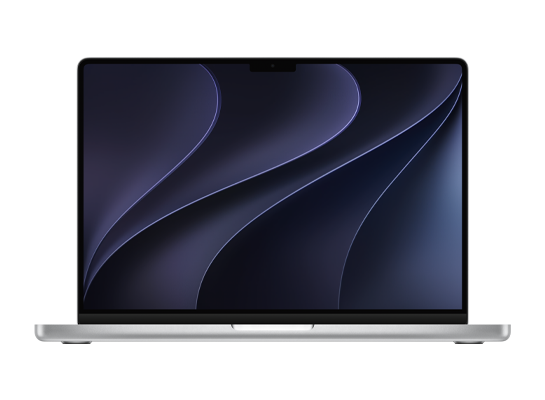
MacBook Pro running macOS 27 MacBook Pro running macOS 27

Mac

macOS 27.2 beta 3
Apple TV 4K (3rd generation)

Apple TV

tvOS 27.2 beta 3
Apple Vision Pro

Apple Vision

visionOS 27.2 beta 3
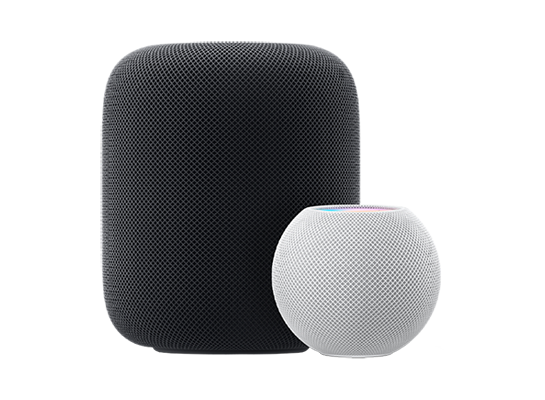
HomePod (2nd generation) and HomePod mini

HomePod

audioOS N/A

How to Install?

You might find installing IPSW files onto your device challenging without guidance. Follow the installation steps below, and you'll be able to do it yourself.

Step 1

Backup your data

Make sure you have backed up your device using iCloud or iTunes on your PC or Mac. Otherwise, you may lose your data.

Click to view details
Step 2

Connect your device

You can connect your device using a Lightning or USB-C cable to your PC or Mac.

Click to view details
Step 3

Install .ipsw file

In iTunes or Finder (Mac), hold down the Shift key (or the Options key on a Mac) and click on "Check for Update" button.

Click to view details
Step 4

Restore your backup

After iTunes has installed the .ipsw file on your device, follow the on-screen instructions to restore your data.

Click to view details

Why IPSW.dev?

Why should you choose IPSW.dev to download beta IPSW files for iPhone, iPad, Mac, Apple TV, and Apple Vision Pro instead of the Apple Developer website?

Apple Developer

Apple Developer is a website that hosts information about Apple software and is the official resource for developers.

  • Latest IPSW file provided
  • Show release date, build
  • Instant updates
  • No IPSW file size
  • No old IPSW archive
  • No IPSW signing status
  • Apple Account login required
IPSW.dev logo IPSW.dev

IPSW.dev is a trusted site for downloading beta IPSW files, regularly updated with the latest releases.

  • Latest IPSW file provided
  • Show release date, build
  • Updated within minutes
  • Show IPSW file size
  • Archive old IPSW files
  • Show IPSW signing status
  • No Apple Account login required

Questions? Answers.

What is IPSW?

IPSW is a file format used to install iOS, iPadOS, tvOS, HomePod, and most recently, macOS firmware for devices equipped with Apple silicon. All Apple devices share the same IPSW file format for iOS firmware and their derivatives, allowing users to flash their devices through Finder or iTunes on macOS or Windows, respectively. Users can flash Apple silicon Macs through Apple Configurator 2.

Will I lose data when updating?

If you follow the above steps, you will not lose any data when updating. But I also recommend that you make a backup of your device before updating.

Learn how to backup your iPhone and iPad
What if I download the wrong file?

Finder, Apple Devices app or iTunes will stop the process if it detects that you have the wrong file for your device. The only thing it will cost you is another download, so please read carefully.

Where did you get these file URLs?
How do I know these are safe?

You’re not downloading the files from this website; you’re downloading them directly from Apple, which is clear from the download URL that shows the domain of Apple’s ipsw hosting server: updates.cdn-apple.com. Plus, if the files are modified, iTunes/Finder will refuse to install them, as you cannot install modified IPSW files.

What does "RC" mean?

A release candidate build (RC) is typically the final build of a piece of software in the beta stages for developers. Typically it is the final build before a major release.

Up until before iOS/iPadOS 14.2, Apple used Golden Master (GM) but with 14.2 that changed to release candidate.


Back up your device
With iCloud
  1. Connect your device to a Wi-Fi network.
  2. Go to Settings > [your name], and tap iCloud.
  3. Tap iCloud Backup.
  4. Tap Back Up Now. Stay connected to your Wi-Fi network until the process ends. Under Back Up Now, the date and time of your last backup is shown. If you get an alert that you don't have enough iCloud storage space to complete the backup, follow the onscreen steps to buy more iCloud storage.
An iPhone showing the Back Up Now option
With With Mac/PC
Connect your device

Use the Lightning to USB-C cable (for iPhone and iPad) or the USB-C to USB-C cable (for iPad Pro and iPad Air) included in the box to connect your device to a computer or Mac.

An iPhone connected to a MacBook via a USB-C cable
Install .ipsw file

If you're using a Mac, iTunes has been integrated into Finder since macOS 10.15.1.

For Windows users, you can download and install Apple Devices app from the Microsoft Store.

In Finder or Apple Devices app, hold down the Shift key (or the Options key on a Mac) + click on the "Check for Update" button. Finder/Apple Devices will then display a window for you to choose the .ipsw file you downloaded earlier. Navigate to the location where the .ipsw file is saved and click OK.

If Finder or Apple Devices app doesn't show your device, try unplugging and plugging in the cable again. If you see the Trust prompt, remember to select Trust This Computer.

Restore your backup

After the IPSW file installation process is complete, you will need to restore data from your iCloud or Finder/Apple Devices app backup.

Follow the on-screen steps on your device to initiate the data restoration process.

An iPhone showing From iCloud Backup as the selected option