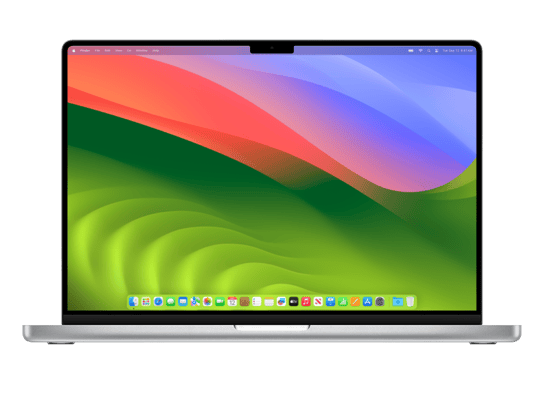
Download macOS 14.5 RC (23F79) for MacBook Pro (16-inch, 14-core M3 Max, Nov 2023)
✓ This firmware is signed. This means that you can restore to it in Finder, the Apple Devices app, iTunes, or idevicerestore.
macOS 14.5 RC Release Notes
Please note, the documentation below is supplied from Apple's update servers. We don't modify the contents of this documentation.
macOS Sonoma 14.5 includes the following improvements and bug fixes:
- Quartiles is a new and original daily word game that is now available in Apple News+
- Scoreboard in News+ Puzzles gives you access to new player data for Crossword, Mini Crossword, and Quartiles, including stats and streaks
Some features may not be available for all regions or on all Apple devices. For detailed information about the security content of this update, please visit: https://support.apple.com/kb/HT201222
Related IPSW
View all IPSW beta for this Mac| Version | Released | File Size |
|---|---|---|
|
14.5 RC
23F79 |
May 9, 2024 | 14.80 GB |
|
14.5 beta 4
23F5074a |
April 30, 2024 | 14.63 GB |
|
14.5 beta 3
23F5064f |
April 23, 2024 | 14.61 GB |
|
14.5 beta 2
23F5059e |
April 16, 2024 | 14.63 GB |
|
14.5 beta
23F5049f |
April 2, 2024 | 14.62 GB |

Installation Instructions
Always back up your devive before installing beta software. You can back up your Mac using iCloud, Time Machine, or another storage device.
Prerequisites
- Second Mac: Another Mac of any model using macOS Sonoma 14 or later.
- USB-C Cable: A high-quality USB-C cable to connect the two Macs.
Steps to Restore (and Update)
- Install Apple Configurator on the Second Mac
- Download and install Apple Configurator from the Mac App Store on the second Mac if it’s not already installed.
- Put the Target MacBook into DFU Mode:
- Shut down MacBook Pro (16-inch, 14-core M3 Max, Nov 2023) you want to restore.
- Connect it to the second Mac using the USB-C cable.
- Enter DFU (Device Firmware Update) mode.
- In Apple Configurator on the second Mac, your MacBook Pro (16-inch, 14-core M3 Max, Nov 2023) should appear as a device in DFU mode.
- Apply the IPSW File:
- Open Apple Configurator on the second Mac.
- Select your MacBook Pro (16-inch, 14-core M3 Max, Nov 2023) in DFU mode from the device list.
- Drag UniversalMac_14.5_23F79_Restore.ipsw file onto the device icon in Apple Configurator, or use the menu: Actions > Restore.
- Confirm the action when prompted. This will erase the MacBook and install macOS 14.5 RC.
- Wait for the Process to Complete:
- The restore process will take some time (15-30 minutes or more, depending on the file size and connection speed).
- The MacBook’s screen may show a progress bar or Apple logo during the restore.
- Once complete, your MacBook Pro (16-inch, 14-core M3 Max, Nov 2023) will restart automatically.
- Set Up the MacBook:
- After the restore, your MacBook Pro (16-inch, 14-core M3 Max, Nov 2023) will boot into the setup assistant.
- You can set it up as new or restore your data from a backup.
Note: Using an IPSW file with Apple Configurator always performs a full restore, erasing all data. There is no option to "update" macOS (preserving data) using an IPSW file directly.